
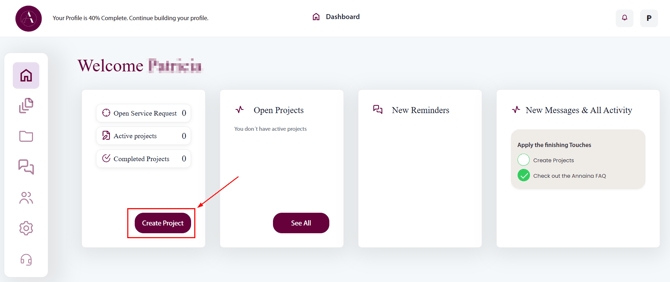
On your Dashboard, navigate to Create Project
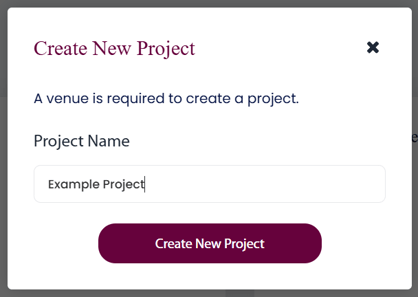
Name your Project
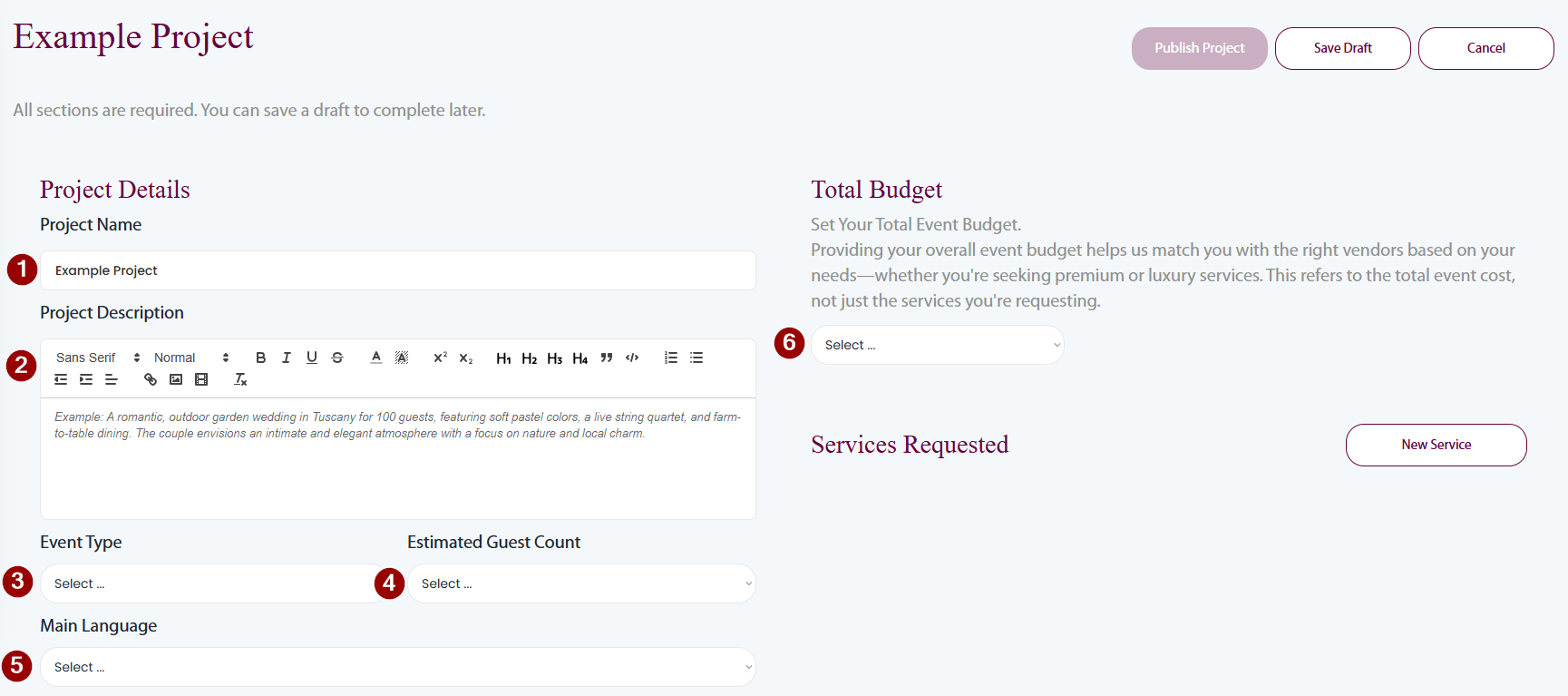
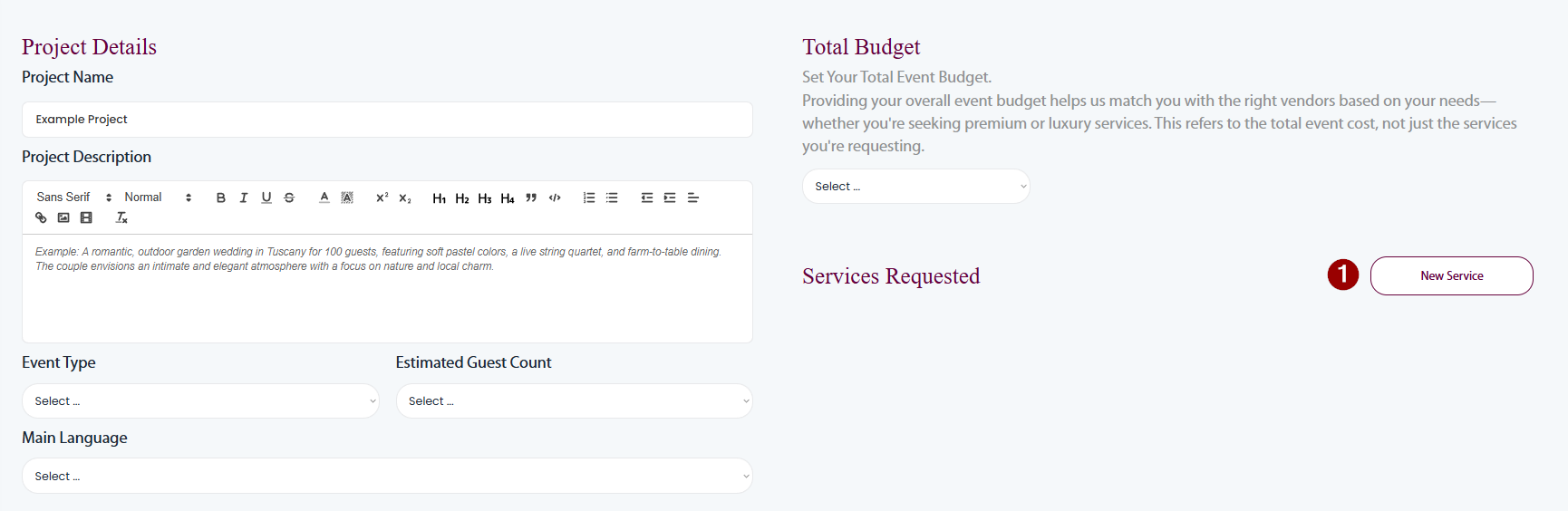
Enter the details of your Project
-
Change the name of your project (optional)
- Provide a description of your project. Be as specific as you can be, without giving your customers personal information or anything that falls under any potential NDA.
You can apply formatting options such as titles, fonts and font sizes, add pictures and links. - Select from the dropdown what type of event it is (Wedding, Corporate etc.).
- Tell interested vendors the estimated guest count of the event.
- If needed, tell the vendor the primary language for planning and coordination.
- Select the overall project budget range from the dropdown.
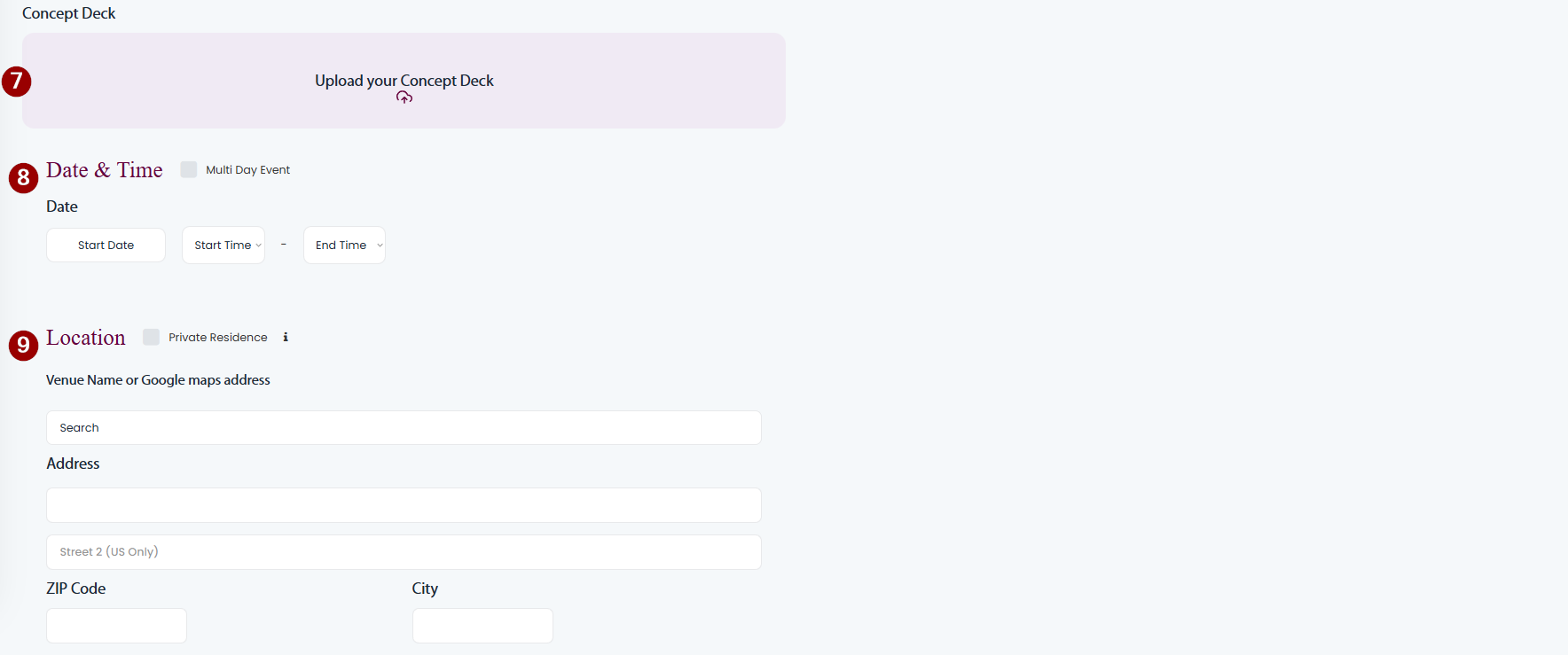
- If you have it, upload a concept deck (PDF) so the vendor get an idea of your vision
**Please make sure you remove information about your company of your clients!! - Specify the date of your Event
- For single day events, set the date and specify the start and end times
- For multi day events, check the Multi Day Event checkbox and set start and end dates
- Set the Location of your Project
- Type the Venue name in the Venue Name Field and select it.
- Alternatively, Enter the address manually
** If you have an NDA that prevents you from disclosing the Venue, check the Private Residence checkbox.
Specify the Services you are looking to source
-
Click on the New Service button.
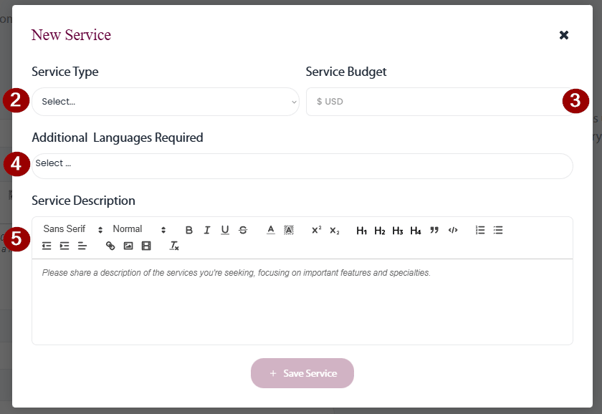
- Select the service type you are looking for.
- Specify the budget for the specific service.
- If the vendor needs to be able to communicate in an additional language (e.g. the caterer needs to be able to communicate with the guests at the event), specify it here.
- Add a description of the service. Be as specific as you can be!
** You can add formatting as well as pictures and links to enable the vendor to see your vision before the engage with you.
Publish the project
After providing all the information, you can publish the project to start matching with vendors.
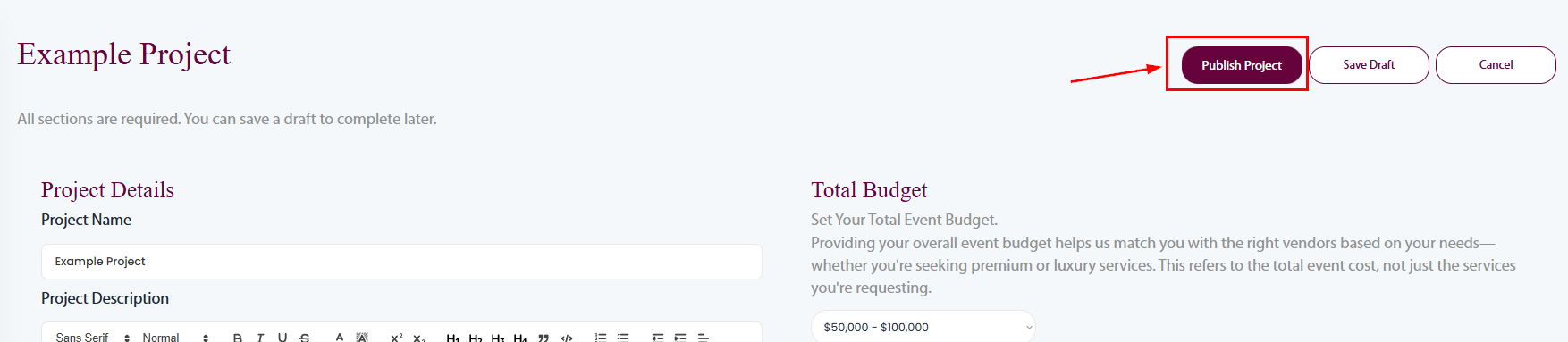
TIP: if the Publish Project button is grayed out, you have missed some information or have not created a service.
TIP: You can also save the project as a draft and complete it later.